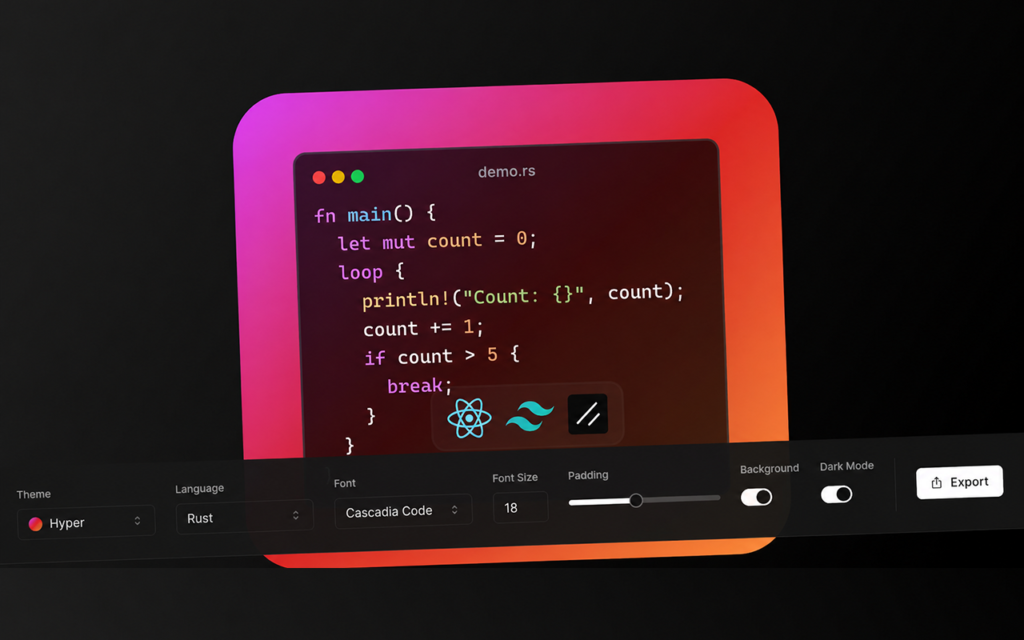
Generate Code Snippet Image with CodeSnap
CodeSnap lets you right-click any code on the web and instantly generate a beautiful, shareable image. Free Chrome extension — no signup needed.
Most developers have been there: you find a clever piece of code, you want to share it on LinkedIn or Twitter, and suddenly you’re doing a ridiculous dance — resize the window, zoom the font, hit Print Screen, open an image editor, crop, export. Five minutes wasted. Every time.
CodeSnap ends that dance. It’s a free Chrome extension that lets you select any code on any webpage, right-click, and turn it into a publication-ready image in under three seconds. No account. No subscription. No copying code into some web app, waiting for it to load, and hunting for a download button.
The tool lives at codesnap — and the Chrome extension wires your browser directly into it. Select, right-click, done.
Why Code Screenshot Tools Mostly Get It Wrong
CodeSnap is a code snippet to image generator, and the category isn’t new — but most tools in it have the same problem: friction. You copy your code, open a new tab, find the tool, paste, configure, and download. That’s four or five steps before you have the image you want.
Other tools make you log in just to save your theme preference. Some watermark your output on the free tier. A few don’t handle Unicode or non-Latin characters, which is a real problem if your code has comments in any language other than English.
CodeSnap skips all of that. The extension encodes your selected text directly into a URL hash — base64 encoded, so it handles any character safely — and opens the image generator with your code pre-loaded. Your theme preference is remembered across sessions. The output is clean, unbranded, and ready to share immediately.
The fastest tool is the one that’s already open. CodeSnap lives in your right-click menu, which means it’s always exactly one click away from wherever you found the code.
What CodeSnap Actually Does
CodeSnap is a Chrome extension paired with an online syntax highlight image generator. The extension adds a single context menu item — Generate Code Image — that appears whenever you’ve selected text on any webpage. Click it, and a new tab opens with your code rendered in the CodeSnap editor, ready to style and export.
The extension has two modes:
- Right-click mode: Select any code on any website — GitHub, Stack Overflow, documentation, blog posts — right-click, and hit “Generate Code Image.” The selected text is encoded and passed to the tool automatically.
- Popup mode: Click the extension icon in your toolbar, paste code manually, choose a theme, and hit Ctrl+Enter (or Cmd+Enter on Mac) to generate. Useful when you’re writing code locally and want to grab a snippet from your editor.
Both modes open the same tool at muzammil.work/tools/codesnap, where you can fine-tune the output before exporting.
How Does the CodeSnap Chrome Extension Work?
CodeSnap uses a background service worker that registers a context menu entry scoped specifically to selected text. When you trigger it, the extension takes your selection, encodes it using encodeURIComponent followed by base64 encoding, and appends the result as a #code= hash parameter in the URL.
This approach is smart for a few reasons:
- No server round-trip. Your code never hits a backend. The encoding and decoding happen entirely in the browser, so there’s no latency and no privacy concern about your code being logged anywhere.
- Unicode safe. The encodeURIComponent step handles any character — emoji, Arabic, Chinese, mathematical symbols — before base64 encoding, so international code comments work perfectly.
- Shareable by design. Because the code is in the URL hash, every image you generate has a reproducible link. Share the URL and anyone can reopen the same snippet with the same theme.
The extension requests only two permissions: contextMenus (to add the right-click item) and tabs (to open a new tab with your code). No access to your browsing history, no injection of scripts into pages you visit, no data collection.
Six Themes That Actually Look Good
A shareable code image is only useful if it looks professional. CodeSnap ships with six syntax themes, selectable from the extension popup or the web tool itself:
- Personal — a custom dark theme, the default, designed for high contrast and visual balance across most syntax types
- Dracula — the widely-recognised purple palette, popular with developers who share on social media
- Monokai — warm, classic, and instantly recognisable to anyone who lived through the Sublime Text era
- GitHub — clean light theme, ideal for documentation, white-background slides, or anywhere dark themes look out of place
- Dark — a neutral dark mode for when you want visual weight without a specific color association
- Light — minimal and clean, best for presentations or print
The theme you choose in the popup is saved locally, so you’re not re-selecting it every time you generate an image.
Who Actually Uses a Code Image Generator?
Short answer: far more people than you’d expect. Here are the real use cases driving daily usage of tools like CodeSnap:
Developers sharing on social media
LinkedIn posts with code screenshots consistently outperform posts with raw text. A well-themed snippet on a dark background reads as more credible and stops the scroll better than a gray text block. Developers building a personal brand or sharing technical learnings use code image tools constantly.
Technical writers and documentation teams
When a code block inside a doc doesn’t render correctly — in a PDF export, a Notion page, a Confluence doc — a styled image is the reliable fallback. It looks consistent regardless of the rendering engine.
Educators and content creators
Online courses, YouTube thumbnails, tutorial blog posts — everywhere that code needs to be both legible and visually polished, syntax highlight images beat plain code blocks. They’re also easier to caption and annotate.
Students submitting assignments
A clean, themed code screenshot reads as significantly more professional than a raw terminal paste or a blown-up IDE screenshot with a cluttered toolbar in the background.
Open source maintainers
README files and GitHub release notes sometimes benefit from showing code in a visual context rather than a fenced code block — especially for feature announcements where the goal is to make the code look approachable rather than intimidating.
How to Install and Use CodeSnap in 60 Seconds
Getting started takes less time than reading this paragraph:
- Go to muzammil.work/tools/codesnap and install the Chrome extension.
- Once installed, go to any website with code on it — GitHub, MDN, a dev blog, anywhere.
- Select a code snippet with your cursor.
- Right-click the selection.
- Click Generate Code Image from the context menu.
- A new tab opens with your code pre-loaded in the CodeSnap tool.
- Choose your theme, adjust if needed, and export your image.
That’s it. The first time you use it, you’ll wonder why you ever did it the other way.
If you want to use it without selecting from a webpage — say, for code you’re writing in VS Code or a local file — open the extension popup, paste the snippet, pick a theme, and hit Ctrl+Enter.
Privacy and Permissions — What the Extension Can and Can’t See
Extensions that request broad permissions deserve scrutiny. Here’s exactly what CodeSnap has access to:
- contextMenus — Needed to add the right-click menu item. Without this, the context menu entry can’t be created.
The extension doesn’t request host permissions, meaning it cannot read the content of pages you visit. It can only receive text that you explicitly selected and right-clicked. Your clipboard, your history, and your open tabs are off-limits.
Why Visual Code Sharing Matters
There’s a reason the most-liked technical posts on LinkedIn and Twitter almost always include a code image rather than a raw code block. Images are thumb-stopping. They communicate effort, care, and craft before anyone reads a single character of the syntax inside them.
A developer who shares beautiful code images consistently will be perceived as more credible than one who pastes raw text — even if the code quality is identical. That’s not shallow, it’s human. Visual presentation is a form of respect for your audience’s attention.
Tools like CodeSnap lower the effort cost of that presentation to near-zero. When the right thing is also the easy thing, you do it more often. And the compounding effect of consistently sharing polished content is a stronger professional presence, more meaningful conversations, and better opportunities.
FAQ
Q: What is CodeSnap?A: CodeSnap is a free Chrome extension and web tool that converts selected code into styled, shareable images. Select code on any webpage, right-click, choose “Generate Code Image,” and a new tab opens with your snippet rendered in a beautiful syntax-highlighted theme — ready to export and share.
Q: Is CodeSnap free to use?A: Yes. Both the Chrome extension and the web tool at muzammil.work/tools/codesnap are completely free. No account required, no watermarks on exported images.
Q: Does CodeSnap work on any website?A: Yes. The right-click context menu appears whenever you select text on any webpage in Chrome, including GitHub, Stack Overflow, MDN, and documentation sites. The extension doesn’t inject scripts into pages — it only activates when you explicitly right-click selected text.
Q: How does CodeSnap encode my code?A: Your selected code is encoded using encodeURIComponent followed by base64 encoding, entirely in your browser. The encoded string is appended to the URL as a #code= hash parameter. No data is sent to any server — the process is fully client-side.
Q: Can I use CodeSnap without the Chrome extension?A: Yes. Visit muzammil.work/tools/codesnap directly and paste your code into the editor. The extension is a convenience layer that saves you the copy-paste step when you’re reading code on the web.
Q: Which themes does CodeSnap support?A: CodeSnap currently supports six themes: Personal (default), Dracula, Monokai, GitHub, Dark, and Light. Your selected theme is saved locally and remembered for future sessions.
Ready to stop cropping screenshots? Install the CodeSnap extension and try the right-click flow at muzammil.work/tools/codesnap — you’ll use it more than you expect.